Sunday, June 24, 2012

Galaxy S III Review

I haven't done a phone review since I started writing primarily because I haven't been really impressed by a new phone in the past several months.  This all changed when I get to spend a little bit of time with the Galaxy S III, Samsung's new flagship phone.  The GS3 will be launching on all the major US carriers and will be available internationally as well (meaning my Russian and British readers are in luck).  I was able to attend  a training event hosted by Samsung in Philadelphia and had the opportunity to tinker with the phone in between the training segments.


Why Should You Care

The phone has some pretty amazing specs and won't require you to open up your wallet as far as the Motorola Razr Maxx ($299) and will get you more bang for your buck than an iPhone 4S ($199).  The phone is a 4G LTE device with a blazing fast 1.5GHz processor and comes loaded with 2 GB of RAM to keep the device running very smoothly.  The 4.8" Super AMOLED screen displays HD videos with incredible image clarity and is protected by second generation Corning Gorilla Glass.

I'm going to break down that last sentence for everyone really quick.  It has a big, gorgeous screen that will be very durable.  Don't be scared by the size of the screen as Samsung reduced the bezel (the white and black stuff around the screen) in order to keep the size of the phone becoming uncomfortable.  The phone is comparable in size to the Droid X or Droid 4 which both have 4.3" screens.

The camera really shined in the short time I got to use the phone.  The phone sports an 8 MP main camera and 1.9MP front facing camera.  The phone features a "burst" mode enabling the phone to take 20 pictures in rapid succession and a "best" mode that highlights the "best" picture based off the number of faces in focus, smiles, and eyes open.  Lastly, the phone has a "smile" mode, in which the phone will automatically snap the photo when it senses the subject smiling.  The camera alone will be enough to move the phone as customers look for a suitable replacement for a point and click camera.

Battery life? While I haven't seen the phone in action for an extended period of time, I would expect the battery to hold up well in comparison to most other phones.  At 2100 mAh, the GS3's battery is second only to the Razr Maxx (3300 mAh) in Verizon's current line up.  Most phones average 1600 mAh and Samsung's Super AMOLED screens have been lauded for their efficient battery use in comparison to energy hungry screens featured by Motorola and HTC.

Lastly, Samsung has developed a new accessory called TecTiles. TecTiles are small adhesive chips that can be programmed to give the phone a specific command.  For instance, you can leave one at work and when you wave your phone across the TecTile, your phone will text your significant other that you're leaving.  Swipe your phone over another tile in your car to turn on GPS and Bluetooth.  Arrive home and swipe over the tile near the phone to mute the device and enjoy some quality quiet time.

Should You Buy It?

Resoundingly, yes!  Like I said before the Galaxy S III is the first phone in a while that has really impressed me.  I would buy the phone ahead of every phone in Verizon's lineup with the exception of the Razr Maxx.  If you're a heavy duty user or just find yourself unable to rely on having a charger handy then the extra battery life on the Maxx should put it over the top.  For everyone else, I'd recommend picking up the Galaxy and using the savings to pick up some TecTiles.


Wednesday, June 20, 2012

iOS 6 - AKA Apple's New Software

So Apple announced the next major software upgrade for the iPhone, iPad, and iPod Touch.  What's this mean for you? It depends.  Do you need new hardware? Maybe (Scroll to the bottom of the next link to see).  You could go here and get the info from the horse's mouth or you can read on as I break it down.

Maps and GPS

Apple finally caught up to Android and is providing a native GPS solution that provides turn-by-turn directions and traffic updates.  There is some integration with Siri, but we'll see how well it works when things are rolled out.  The good folks over at Gizmodo have a great comparison of Android vs iOS and for the time being it looks like Apple still has some room to catch up on.

Siri

Siri's getting an update to her functionality.  You can stop asking it where to bury the dead bodies and get more information for sports, movies, and restaurants.  Thumbs up for integrating Siri into apps like Open Table.  I'm curious to see if these developments are coming more from Apple or the app developers.  I'd love to see people add movies to their Netflix queue or start up Pandora on a specific channel with just their voice.

On the down side, you'll be able to update your Facebook and Twitter accounts via Siri.  This means I'll be seeing more fecal matter related updates on Facebook regarding newborns.  You know who you are :)

Apple will be partnering with car manufacturers to integrate Siri into voice control systems.  I'll hold off judgement until I see what manufacturers are doing.  Personally, I wish Apple would engage in some heavy handed restrictions and force a universal system across all cars, but that'll never happen.  My concern is that some manufacturers have created horrible bluetooth user interfaces (Mercedes, BMW) that are painful to use and others that are very unreliable (Ford).

Photo Sharing

At first glance I yawned, but then realized this will be a nice addition for people who don't have or use Facebook regularly.  iOS users will be able to create mini social networks and share photos with friends and family members regardless of the device type they have.

Facetime 

You won't be forced to hook up to a Wi-Fi signal to use Facetime.  You still may want to given the network congestion on 3G networks and the amount of data video calling can use.  Don't say I didn't warn you when your teenager jacks your cell phone bill up because she had to video chat with the varsity QB during study hall.

Passbook

I'm just going to copy and paste from Apple's site on this one because it sounds really cool but I'd be surprised if how many people really take advantage of it.

"Your boarding passes, movie tickets, retail coupons, loyalty cards, and more are now all in one place. With Passbook, you can scan your iPhone or iPod touch to check in for a flight, get into a movie, and redeem a coupon. You can also see when your coupons expire, where your concert seats are, and the balance left on that all-important coffee bar card. Wake your iPhone or iPod touch, and passes appear on your Lock screen at the appropriate time and place — like when you reach the airport or walk into the store to redeem your gift card or coupon. And if your gate changes after you’ve checked in for your flight, Passbook will even alert you to make sure you’re not relaxing in the wrong terminal."


Wrap Up


But when's the iPhone 5 coming out? No clue.  You, me, and the Wall Street Journal will all find out at the same time when Apple makes the big announcement.  Trust me, you won't be miss it.

Tuesday, June 12, 2012

New Verizon Data Plans

Chances are you've that Verizon is changing its plans on June 28th.  It's true, Verizon Wireless just announced its new Share Everything Plan.  Stop, breathe, and please read on. I'm going to explain how they work and clear up a few misconceptions.  Mind you, these plans were just announced today and this information will cover most scenarios.  

Currently customers need to manage minutes, text messaging and data usage.  Verizon will be simplifying options by giving all phones on the Share Everything Plan unlimited minutes and text messaging.  Every device on the account will incur a fixed monthly access charge (more on that in a minute). Customers will then pick a data plan that all of their devices will be able to access (up to 10 devices).

Notice how I keep referring to devices and not phones?  This new plan includes options for smartphones, basic phones, laptops, mobile hotspots, USB sticks and tablets.

The monthly charges for devices are as follows
  • Smartphones - $40
  • Basic phones - $30
  • Netbook, Mobile Hotspot, USB stick - $20
  • Tablet - $10
Data buckets for the entire account
  • $50 - 1GB
  • $60 - 2GB
  • $70 - 4GB
  • $80 - 6GB
  • $90 - 8GB
  • $100 - 10GB
There are going to be times when the new plans are a better value and times when the old plans are a better value.  The benefits going forward are freedom from overages for minutes and texts along with the ability to share data across multiple devices.  Most people use a lot less data than they realize (take 5 minutes and read your cell phone bill).

Mary's family has 2 smartphones sharing 1400 minutes and unlimited text messaging.  Her monthly bill comes to $180.  The total data usage for the smartphones is under 2 GB each month.  Mary's mom wants a tablet but doesn't think she'll use it enough to justify paying $30 per month.

Under the new plan, Mary's family could share 4 GB of data shared across two smartphones and a tablet for $160 per month.  (2 smartphones at $40/month, 1 tablet at $10/month, 4 GB of data at $70/month).  We've gone from a potential bill of $210 down to an actual bill of $160.  We've saved money and we're getting more bang for our buck.

I'm not going to play out every possible scenario because, quite frankly, I'd rather be watching The Big Bang Theory.  If you're a Verizon Wireless customer, now is a really good time to look through your account.  If you're not a Verizon Wireless customer, see the previous statement.

For more information visit Verizon's website

If you have Verizon Wireless and you have a family plan.

1)  Your plan is not changing on the 28th.
2)  If you have unlimited data on your smartphone now and upgrade after the 28th, you will have a few options.

  • Pay the full retail price on a phone and you may keep unlimited data.
  • Purchase a new phone at the discounted price, keep your current phone plan and switch to a tiered data plan (2 GB - $30/month, 5 GB - $50/month, 10 GB - $80/month for a single device)
  • Purchase a new phone at the discounted price and switch to the new Share Everything Plan

3)  In a lot of instances, if you don't want to restructure your plan, you won't have to (unless you have unlimited data)
4)  You cannot combine the old minute plans with the new shared data plans.

Who will these new plans apply to automatically?

1) New customers to Verizon Wireless
2) Customers with an individual line of service moving to a shared plan

Tuesday, May 29, 2012

Swiftkey: A New Way of Typing Submitted For Your Approval


One of the nicest things about Android is the ability to swap out different components of the phone. I recently downloaded an app called Swiftkey that allows me to change out the default on-screen keyboard for my Droid 4.  Why would I do such a thing? Well for you guys of course :)  This is a free app to trial but the permanent version can be purchased for $2.99.

Most people are used to a form of predictive text where the phone will predict the word you are trying to spell.  Swiftkey takes it a step further and predicts word after word.  It sounds weird until you actually have the keyboard in front of you.  Take a look at the videos below to get a preview of the app.  


I've dug through the apps settings and wanted to highlight a few options.

It will let you download keyboards that support a variety of languages including Spanish, German, Italian, and French. It does not support any Asian languages at this point.  

If you want to go back to the standard keyboard follow the following instructions.  

1) Create a new text message
2) Tap and hold your finger in the "Compose Message" area until a pop up menu appears
3) Select another keyboard

Swiftkey will ask you for your permission to look at your Facebook and Twitter accounts, email, blogs, and text messages in order to quickly learn how you communicate.  If you choose not to enable this feature, it will still learn your habits, but at a much slower space.

You can delete entire words by flicking your finger from right to left across the backspace button.

Holding the "Return" key will enable emoticons.

You can adjust the height of the keyboard in both portrait and landscape modes. 

The app keeps track of a couple stats which is a pretty neat trick.  It records the number of keystrokes saved, typos corrected, and total words predicted.  

Lastly, it scores your accuracy via a typing heat map.  The map is a visual representation of your typing style.  The blobs morph over time to fit the region that you tend to press when you want to use that key.  In layman's terms, the phone starts to learn if you can't type properly and adjusts accordingly. If you look at mine below, I apparently can't hit the letter A properly.


Wednesday, May 23, 2012

Dropbox - New and Improved

I've mentioned a program called Dropbox in several posts and a recent software update has prompted me to shed a little light on this gem of an app.  Dropbox is software available for smartphones, laptops, and computers that allows you to easily move files between multiple devices, back up files, or share files with another person.

Dropbox gives you 2 GB of storage upon signing up for your account and increase your account size up to 18GB through referrals at a rate of 500MB per referral.  Heavier users can purchase larger amounts of storage with monthly rates starting at $9.99.

Here are the thing you'll want to do.  For those that need more assistance, please watch this video.


1) Sign up for the account
2) Download the program to your phone and/or computer
3) Move files into your Dropbox.


Once you've downloaded Dropbox to your computer you will see it on your desktop.  All you have to do is double click the program to open it and you will see a folder open up.  Anything you put in this folder will be backed up to Dropbox and accessible on other devices.  If you're on someone else's computer, you DO NOT need to download Dropbox.  If you go to Dropbox.com, you will see an option to log in to your account in the upper right hand corner. You can transfer files when accessing your account this way.  This is a great way to access your stuff from a work or school computer if you can't install new software on it.

Watch the following video and fast forward to the 6:20 mark if you want to move files from you phone to your computer.


Now that I've completely buried the lead, it's time to talk about what got me motivated to finally talk about Dropbox.  A recent software update allows Android phones to automatically upload all photos and videos to Dropbox.  Upon installing the app on my Droid 4, Dropbox asked me if I wanted to upload my pictures and videos.  In less than 5 minutes, I had about 40 photos uploaded.  Videos will only upload over Wi-Fi however and the app will not upload anything if your battery level is too low (it immediately resumed uploading upon placing the phone on a charger for me).  In the settings menu you can toggle the camera upload, whether uploads take place over Wi-Fi or cellular connection, or turn off the 25MB file limit (this allows videos to automatically upload, but remember this counts against your data plan).

That previous paragraph is worth the price of admission for this blog and the app.  Wait a minute... I'll see you next time. :)

Monday, May 14, 2012

Task Killers

One question that frequently comes up in my classes is whether or not people should download a task killer app.  My answer is no and this article does a nice job.  Before you go an read the article, let me explain a few terms the author uses.

CPU cycles - The speed of a processor is measured in megahertz (Mhz) and it measures the number of CPU cycles it can process per second.  So, a 600Mhz processor will process 600,000,000 cycles per second.

ROM - A ROM is essentially a different software version for a phone.  Every phone can be customized with a different software version that changes the look and performance of the phone.  The average user most likely will not customize the phone this way.  I only mention this because I don't want anyone to get lost in the article.

Rooting - Do you have a phone that came with lots of apps and software installed on it? Rooting your phone will allow you to uninstall these applications because you'll have access to all the internal parts of the phone.  If you're looking to breath some life back in to an Android phone that is a little long in the tooth or you suffer from OCD regarding your phone, then this might be worth investigating.

Tuesday, May 8, 2012

"There and Back Again" or "Little Odds and Ends"


I’m going to tackle a bunch of little “how to” items in this article for Android phones.  Once again, I’ll be describing procedures using a Motorola Droid 4, so there may be some small differences in the way items are arranged.  All procedures are explained assuming you are at the home screen.

Changing Wallpapers (aka The Background)

Menu Key -> Wallpaper

You will see three options pop up - "Live Wallpapers," "My Gallery," and "Wallpapers."  "Live Wallpapers" and "Wallpapers" will let you choose from preinstalled and downloaded background images.   "Live Wallpapers" are animated backgrounds while "Wallpapers" and "My Gallery" are static images.  "Live" is one of those really cool things you'll try out when you first get an Android device.  Just be forewarned, as cool as it is to have Mario running across your screen, abusing turtles, and torching flowers, your battery will die faster than the Twins' chances at making the playoffs.


Get Rid of Wi-Fi Pop Up Notifications

I've learned from teaching classes that some people won't read what actually comes up on the screen and have been conditioned by Windows that if a pop-up menu comes up then something must be wrong.  So when someone opens up YouTube or the browser and a Wi-Fi notification emerges, something must be wrong and the internet must be broken.  

I've already shown you where to go connect your device to a router.  What I forgot to mention is that your device will ask you to connect to Wi-Fi each time you launch a data intensive app and there is a visible router.

Chances are you do not, I repeat, do not need to connect to every wireless router you come across unless you consistently stream audio, (20 hours per week) video, (HBO GO, Netflix) or make video calls (Skype, Tango).  

To turn on Wi-Fi notifications select the following.  Menu -> Settings -> Wireless and Networks -> Wi-Fi Settings -> Uncheck Notify Me

Change Your Keyboard

Keyboards are a very personal choice.  Some people can't give up their physical keyboards, some love Swype, and some people speak Japanese.  I for one love the Skype keyboard.  I can easily enter text with one hand on a 4-inch screen.  I know not everyone can, so here's how to switch keyboards.

Open up a new text message ->  Press and your finger in the area where you compose the text -> Select input method -> Select your desired keyboard

If you want/need an alternative keyboard then search for them in Play Store (aka Market Place) and download the keyboard like you would any other app.  Before you can select this new keyboard you need to enable it.  I downloaded the Google Japanese Input keyboard for this example.

Menu -> Settings -> Language and Keyboard -> Make sure the check mark is lit next to the downloaded keyboard.


My On Screen Keyboard Stopped Working

Your keyboard is an app.  It takes up memory and can eventually get bogged down.  So if you start typing and you can only enter a word or two, following this process can save you a trip to the store or call to your carrier for troubleshooting.  

Menu -> Manage Apps -> Tap the tab labeled "All" -> Choose Your Keyboard

For the part where you choose your keyboard, it will most likely be "Multi-touch keyboard" or "Swype."  Once you've selected your keyboard, tap "clear data."  This will clear out any words, names, slang, or abbreviations your phone has learned.  It's a small price to pay to fix, but if it is the solution to your problem, it is a lot better than a master reset.

Speaking of Master Resets

Sometimes you have to bite the bullet and reset your phone.  Other times, it just makes good sense to reset your phone before you ship it to the person you sold it to.  Regardless of the reasons, this will reset your phone back to it's factory settings.  Every app, picture, message, email, and song will be erased from your device.  

Menu -> Settings -> Privacy -> Factory Data Reset

Save Your Battery Life

Read this article and add a widget called "Toggle: Power Control."  The icons you see on this widget function as light switches.  From left to right your icons are Wi-Fi, Bluetooth, GPS, Sync, and Brightness.  The first three are simply on-off switches.  If you're not using a particular feature, then turn it off and save yourself some battery life.  Always leave Sync on unless you don't want your phone to periodically check for new emails, tweets, or Facebook notifications.  Lastly, pick a screen brightness level and you're set.

Keep Your Screen on Longer

Do you feel like your screen dims itself to quickly?  You can adjust it, although I wouldn't go much higher than two minutes as it will start to hamper your battery life.

Menu -> Settings -> Display -> Screen Time Out

Thanks again!

We're going to stop here for now.  As always, I appreciate those who frequently visit and have passed the site along.  Last month was the fourth consecutive month of increased visitors!  And for anyone who felt duped into reading the article based off the title, here's a little peace offering.


Sunday, April 29, 2012

007 Would Be Proud - How to Record Calls and Back Up Text Message

A recent article on the Wall Street Journal prompted me to give two apps a try. The first is Calltrunk which is an app that automatically records your calls and backs them up to a server. The other is Uppidy, an app that will automatically back up your text messages.

Calltrunk

Calltrunk works exactly as advertised, but there are a few things you need to know beforehand. First, know what your state’s laws are regarding recording conversations. Secondly, you can only record calls that you initiate through the app. Calltrunk will give you a free trial to test it out, however beyond that you need to pay either a monthly rate ($5-$50 per month) or 8 cents per minute.

When you initiate a call through the app, it takes a few seconds for the call to process. You’ll receive a call on your phone from the person you’re calling as Calltrunk connects the call for you. The person on the other end will see your number come up on the caller id just as it normally would. Once the call is completed, you can review the call on Calltrunk’s website and the audio playback is very solid.

Calltrunk will listen and analyze the call and you can search your recordings by key words. I made a test call to my bank’s customer service number and was then able to find those recordings by searching for terms like “bank” and “customer service.” Calltrunk has a built in feature that allows users to send recordings to accounts for Box, Dropbox, and Evernote. To sum it up, Calltrunk does exactly what it’s supposed to do and does it well. The only shortcoming I can find is the inability to record incoming calls. Calltrunk is available for iPhone, Android, Blackberry, and Windows Phone devices.

Uppidy

Not to sound repetitive, by Uppidy does its job well. The app will back up your text messages to its website. Text messages can either be backed up manually or every 1 to 10 minutes. I haven’t noticed an extensive battery drain with it set for 10 minutes. I’m not an extreme text message user and average about 1000 total messages per month. If you’re concerned about battery life, you can set the app to back up your messages manually.

Uppidy’s website seemed a little sluggish at times and required me to refresh my screen a few times to get pages to load properly. I use Chrome, but I don’t know if the issue was browser related. The website’s dashboard interface is clean and efficient. Conversations are listed on the left hand side of the site and quickly load when selected.

In the past I would recommend using an app called SMS Backup and Restore, but Uppidy surpasses its performance for a few reasons. SMS Backup requires users to manually back up text messages to a memory card. In my experience, I’ve seen SMS Backup fail on some older models of Android phones and if you lose or damage your SD card then you’ve lost your messages. Uppidy eliminates these last two worries because your information is stored remotely.

Uppidy is available for Android and Blackberry devices.

Friday, April 13, 2012

MLB At Bat '12 Announces It's Presence With Authority

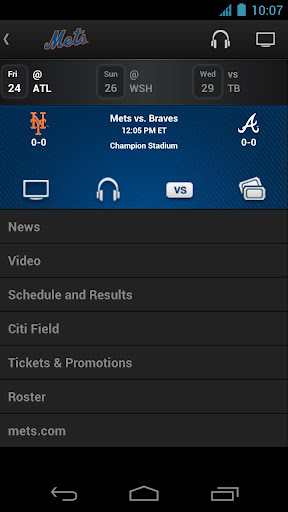
It’s baseball season and that means it’s time to plop down arguably the best $15 I’ll spend all year long for the MLB At Bat App which is available for Android, Apple, Blackberry, and Windows Phone devices. I’ll be reviewing the Android app so your mileage may vary regarding the layout and functionality of some features on other operating systems.

Pulpit rock

Looking through the Play Store (aka Android Market) you’ll find two apps by searching for “MLB.com At Bat.”

Pulpit rock

At Bat Lite – view live scores, news and standings
- Assign your favorite team for team schedules, tickets, rosters, and stats
- MLB.tv premium subscribers can unlock all the features of the app and watch live games

At Bat Premium
- Access real time pitch tracking, box scores, and play by play
- Listen to live radio broadcasts of every game
- Choose your audio feed (I’m waiting for the Portuguese play by play for the Yankees)
- Watch in-game highlights
- Watch live game action (blackout restrictions apply)

Pulpit rock

The default view in the news section but a dropdown menu gives users the option to filter the news to individual teams. Articles are culled from MLB.com and have embedded video highlights in the articles. Most writers are available to follow via Twitter to give fans some extra insights on their favorite teams. Phillies fans should check out Todd Zolecki

The app will play out of your equipment’s speaker by default, but sometimes that’s not the best option. There are a few ways to listen to the game in the car which is great if you don’t have satellite radio and have lost the signal from the local station. Some cars have a dedicated iPhone docking port. Others have a dedicated auxiliary input. Some cars have it labeled “Aux.” A cable like this one will take care of you.

Pulpit rock

For cars without an auxiliary port, a Bluetooth speaker with an FM transmitter like the
Motorola Roadster will let you stream your music through your car’s FM radio. There can be a little bit of audio loss using the FM transmitter depending on which station you program the speaker to use. The audio cable will provide better audio quality.

This last one is on the house. I was surprised how hard it was to find a good clip from this movie without an obscenity. My girlfriend still hasn't watched the entire thing.

Wednesday, April 4, 2012

Navigating Your Desktop and Settings For Android

I’m back again to help new Android users get acclimated to their phones. Today, I’ll be going over the notification bar, your desktop, and some common settings that you’ll want to take a look at.

Meet the Desktop

Looking at an Android phone loaded with a ton of apps and widgets on the desktop can sometimes be a little daunting for a shopper. It shouldn’t be. Remember, the phone on display isn’t yours. You will be able to lay your phone out however you want and I’m going to go over how. Actually, I won’t, but the video below will.


Your phone may not have the trash can in the same position. It may be at the top or in one of the bottom corners. Additionally, when you delete an icon off the desktop, you are not uninstalling the program. You’re simply removing the icon. In regards to moving an icon from one window to another, if you’re having difficulty, chances are your finger is not close enough to the edge.

Widget? What’s a Widget?

You may see some larger icons on the desktop. They are called widgets. A widget allows you to either view information or control something on the phone directly from the desktop. For instance, if you’ve downloaded the music app Pandora, its widget allows you to pause, play, and skip tracks without going into the app itself (handy if you’re out for a jog).


On some phones the method shown may not work depending on how the manufacturer has laid out the menus on the phone. If this is the case for your phone, find a blank spot on the desktop and then press and hold your finger on the screen for a second or two. This is called a “long hold” or “long press” and will bring up the same menu in the video.

Adding Apps to the Desktop

Adding apps to the desktop is very easy. Most phones will have any icon in the bottom right corner listed as “Apps” or “Applications.” Regardless of how you get into the app tray, find the app you want to put on the desktop, then press and hold the icon. Some phones will automatically bring the icon to the desktop. Others may bring up a menu asking you what command you would like the phone to perfrom.

Notification Bar

The notification bar can be found by dragging your finger from the very top of the phone down to the bottom of the screen. It will alert you of missed calls, emails, software updates, or notifications from an app you have downloaded.


Your notification screen will vary depending on the model of your phone. Manufacturers can differentiate the phone by customizing the notification bar. Some phones may display a list of recently used apps. Other phones may give you the ability to toggle GPS, Bluetooth, or Wi-Fi. If there are toggle buttons, I encourage you to get familiar with them. Frequently, customers will come into my store with a problem caused by inadvertently toggling one of these icons. The two biggest culprits are disabling the auto-rotate feature or disabling the internet connection to the phone.

" />

Navigating Your Settings

We’re going to spend the rest of this post going through our settings. I’ll be going through these on a Motorola Droid 4. To find the settings key you will want to hit the Menu key and then select Settings.

Wireless and Networks – You will find Bluetooth and Wi-Fi settings here. Just because you turn them on does not necessarily mean they’re doing what you want them to do. You must go into “Wi-Fi Settings” or “Bluetooth Settings” and connect your phone to the desired router or Bluetooth device. Generally speaking, after connecting your phone to another device it should automatically connect to the same device as long as the correct signal.

For example: Pair your phone to your Bluetooth headset and then as long as the headset is powered on and Bluetooth on the phone is turned on the two devices will connect automatically.

Sound – Shocker, you can control your audio settings. Your ringtone setting for incoming calls and the notification ringtone for text messages and email will be found here.

Display – If you think your screen goes dark to quickly, you will find the Screen Timeout setting useful for increasing the time the screen stays lit. I wouldn’t go above 2 minutes though as you will see a decrease in battery life.

Privacy – You can perform a master reset by selecting “Factory Data Reset.” This will erase everything on your phone.

Sunday, April 1, 2012

Getting Comfy With Android

If you’re reading this article, chances I’ve recently sold you a phone and this is your first time owning an Android smartphone. First, thank you for your business and secondly, I hope you enjoy your new phone. I’ve put this primer together for you as a supplement to what I’ve gone over with you in store and to tide you over until you’re able to make it to a class. Verizon Wireless offers free classes at this link. There are online videos to view at your own pace, instructor led classes, and in-store sessions that you can sign up for.

As an FYI, any examples I provide are from the setup on the Droid 4 by Motorola. There may be some slight differences between your device and mine and you’ll just need to look for a few seconds to see the differences.

Meet Your Home Keys


Smiley face

Almost every Android phone has four keys at the bottom of the screen. Starting at the left they are Menu, Home, Back, and Search.

Rule #1 of the menu key is if you know you’re in the right place but don’t see an option for what you want to do, hit the menu key. For example, when you need to add a new contact in the address book and you’ve missed the plus sign at the top of the menu, you can press the menu key to bring up a menu with an option to add a new contact.

The home key will bring you back out to your desktop page. This is the equivalent of minimizing a program on your computer. It does not close the program out, and when you open the app back it brings you right back to where you were. The back key will bring you back one menu at a time. Some people are unable to make the distinction between the two buttons and get discouraged when they struggle to navigate the device.

The search key provides two functions. First, it provides you with easy access to search the web using Google. When you start typing it gives you auto-suggestions just like on the Google website. It will also look through the phone for apps or contacts. Aside from voice commands, this is the fastest way to find anything on the phone. There is no need to scroll through your contacts manually or try and remember where put Angry Birds.

Gmail

You will need to set up an account to access the Play Store in order to download apps, music, or books. You do not need to make it your main email account and continue to use your existing email accounts. I know this may seem like common sense, but make sure you keep your login and password stored somewhere safe. I have had countless customers lose it and you are at risk of losing access to contacts, calendar appointments, apps, and music when you switch from one Android phone to another.

Market Place/Play Store

Smiley face

This is where you can download apps, games, music, books and rent movies. Many apps and games are free because they are ad-supported or allow you to complete micro transactions in game. Within 24 hours of activating your phone, you the Market Place app may disappear from your home screen or simply change names. This is normal. Google has rebranded it to the Play Store. We’ll cover how to get it back on your home screen later. In order to find anything, you can either manually search by tapping on one of the categories or use the search icon in the upper right hand corner to specifically search by name. One last point on the Play Store, you can also view and download apps from play.google.com.

Introducing the Long Hold

A long hold is different from a tap. Sounds stupid, but it needs be said. A tap on the screen is the equivalent of a left button click on a mouse while a long hold is the equivalent of a right click on the mouse. A tap will select something while a long hold will give you options. Long holds are useful for adding widgets to the desktop, opening up websites in another browser tab, or deleting contacts and text messages.

Managing Your Battery Life

Watch this video and add the power widget to your home screen. Some phones may have the widget listed as “Toggle: Power Control.” The only ones you should concern yourselves with are Bluetooth, GPS, and Wi-Fi.


Next, go to the Play Store and download “4G Toggle” and add this widget to your desktop following the same. This app will allow you to tell your phone to stop connecting to a 4G network and only connect to 3G. When you tap the widget it brings you to a network settings option. Tap “Network Mode” and select “CDMA only” and you will only use the 3G connection. Switching back to “CDMA/LTE” will enable 4G again.

The lesson here, turn these items off when you don’t need them. When you get out of your car, turn Bluetooth off. When you turn it back on and get within range of your car or headset they will reconnect automatically.

See you next time

Thanks again for visiting. I’m going to leave you here to play with your phones for a bit. Next time I’ll review the notification bar, managing apps and shortcuts on the desktop , digging through settings, and using GPS.

Tuesday, March 6, 2012

Tweetering the Truth


I know I said I would talk about web browsers for Android in my last post, but I just wrapped up a sales training session and the trainer made a comment about being unfamiliar with Twitter and given her position I felt this could be a great addition to her communication toolbox. (Maybe it’s for my mom too. Maybe she’ll read this and try something new on her Blackberry).

Twitter Primer

When it comes to Twitter, there are two distinct groups. Those that get it and those who do not. Celebrities, athletes, marketing professionals, customer focused companies, social influencers (the list goes on) have figured out how to make twitter work for them. I’m not here to tell you how to become a social influencer on Twitter or how to use it to brand your company. I’m here to encourage you to create an account, give it a shot, and find out what all the tweeting is about.

140 Characters of Magic

When I first saw Twitter, I was like you. I thought Twitter was stupid and I didn’t get it. I thought it was just Facebook’s status update system on steroids. It’s not. In its simplest form, Twitter is about communicating and sharing with people you know or people you want to get information from in short, concentrated messages known as Tweets. Tweets are composed of 140 characters including punctuation and spaces.

Meet @ and #

These two characters make Tweets go round the world. In order to “tweet” at someone, type “@” and the account name. So, if you want to tweet at Barack Obama, or at least the public Twitter account for the POTUS, you would type @Barackobama. Once you hit the send button, Mr. President’s account receives a notification and all your followers see your tweet show up in their news feeds.


Hash tags, also known at “#”, allow you to become part of a conversation. If I wanted to see what people were saying about Peyton Manning following the announcement the Colts were releasing him, I could search for #Manning or #Colts. Likewise, if I wanted to take part in the national conversation I could include #Peyton in a tweet. Huh,, go figure. The first tweet for #Peyton was for the television show One Tree Hill.

Now Trending on Twitter

Trending topics are the most popular items being discussed or mentioned on Twitter at a given time. Twitter’s software searches for frequently used words, names, terms. Topics do not necessarily need to be attached to a hash tag to trend, however. Users can search for trending topics across the world, nationally, by city, or locally using a GPS enabled device. I looked (March 6, 10pm EST) to see what was trending in the United States and got the following results.

• Game of Thrones
• #themainetour
• #ThingsThatMakeMeLOL
• #stopkony
• Kony
• Rick Santorum
• Peyton Manning
• Ohio
• Colts
• Draw Something

Some of the topics were to be expected given that it was Super Tuesday of the Republican Primary. The two Kony topics referred to a militant African man named James Kony, infamous for kidnapping children. Politics, Manning, Kony, HBO’s fantasy drama, and a cell phone game were all trending. This is Twitter in action. Mainstream news topics were rubbing shoulders with grass roots efforts like the efforts to increase the notoriety of James Kony. Thanks to Twitter I know a little more than I did when I started writing this.

Getting Started

One of these easiest ways to get going on Twitter is use it as a news feed. Start following your local paper’s account (@phillyinquirer – Philadelphia Inquirer) and its journalists (@Jeff_McLane – Eagles beat reporter). Add in a national account or two (@ccnbrk CNN Breaking News and @nytimes – NY Times). Do you belong to an organization (@phikappapsi – national fraternity)? Have a favorite sport (@mlb) See where this is going? See how easy this can be?

Following and Followers

You can follow any account you choose. Accounts will generally fall into the following categories – friends, news outlets, celebrities, journalists, and organizations.

If you go into Settings you can limit your tweets to only those who follow you. Additionally, you can block individual accounts from following if you so choose.

The Big Finish

Hopefully this pulls the curtain back on Twitter for you and demystifies the website with cute little blue bird as a mascot. Twitter isn’t a thing for college kids or Kardashian sisters or geeks. It’s a doorway. It doesn’t matter if the door is one you’re familiar with or one you never knew existed. Just turn the handle and see what’s on the other side.

Friday, March 2, 2012

Starting up on Android

So you’ve made the jump to an Android smartphone. If you purchased your device from your carrier or a big box retailer like Best Buy, hopefully your sales rep went over some of these things. This will be a good primer for new users as they get settled into a new device.

Start Me Up

As your phone starts up for the first time, it will require you to set up a Gmail account through Google. If Gmail isn’t your main account, don’t fret, you’ll be able to add other email addresses later. Setting up a Gmail account serves several purposes. Gmail will synchronize your contacts and calendar and will serve as your login for a variety of Google’s applications including the Android Market, YouTube, and Google+. The Market is where you can download games and applications, purchase movies and books, and rent movies.


Many devices will also give you the option to add additional accounts to your device (Facebook, Twitter, LinkedIn). Adding these accounts will import your contacts into your address book. On the upside, it synchronizes information you might not have had into your address book (Uncle Larry’s email, birthday, and profile picture for Caller ID). Its counterpart is whether or not you want every one of your Facebook and Twitter contacts in your address book. You can adjust your address book settings by entering your contact list, hitting the menu key, and selecting “Display Options.” This is beneficial if you want to use your Facebook contact profile pictures for caller ID pictures but don’t want everyone in your address book.

With great power, comes shorter battery life.

Moving from one of these to one of these is a big upgrade in functionality. The best advice I can give is use what you need. On your home screen you will want to add a power widget. To do this, find a clear row on your desktop, then press and hold this area on the desktop. A menu should appear, select “Widgets,” and search for power control. These steps can vary by device and software version, but will get you close enough. This will allow you to easily control whether Bluetooth, GPS, and Wi-Fi are on. Lastly if you have a 4G device, you should be able to download a 4G widget through the Market. Turning off 4G can also help out battery life when you don’t need the dramatic speed boost.

Ok, so I’m set up. Now what?

My goal is to put together articles featuring apps that focus on specific areas. The great people at Gizmodo maintain a monthly article and an all-time best apps list. Their most recent update can be found here.

Lastly, do yourself a favor and download the Amazon App Store. App developers will partner with Amazon to give away their app for free or a reduced price. Each day, Amazon will give a different paid application away for free.


1) Go to Settings and click “Applications”
2) Click “Unknown Applications” and select “Yes” when a pop-up menu appears
3) Click this link and enter your email address
4) You will receive an email from Amazon, open it and click the first link in the email
5) The Amazon App Store will download. You will be notified when it is complete.
6) Go to the notification and install the program
7) You will need an Amazon account set up with 1-Click purchasing to download apps

That’ll be it for this week. Stop back in next week when I talk about the native web browser for Android devices and what you can do to get a better experience while on the web.

Monday, February 20, 2012

Music Music and Music

I received a request for some help using a device as an MP3, so this one goes out to you Mike.

The first thing we’re going to look at is storage. Devices can either have storage built into the device or utilize an expandable memory card. In my experience, most people completely overestimate the amount of storage they need. However, if someone is definitely using a device for music or video playback, I would generally recommend going bigger when in doubt. Amazon will get you 32GB of storage for $25 + shipping.

A quick rule of thumb is every minute of music in MP3 format will take up 1 MB of storage. Your mileage may vary as the higher the quality of the recording (measured in bitrate) will increase the size of the file. So, 16GB of storage would get you over 250 hours of music on a device.

Next on the agenda are streaming and your data plan. If you are listening to music and it isn’t stored on your device then chances are you’re using your monthly data plan or Wi-Fi to stream the song. Streaming uses your allotment of data if you aren’t connected to WI-Fi. Stream enough music and you could face overage or see your data speeds throttled. The lesson here is to know your data plan and know your usage. Most carriers provide an easy way to track how much data you have consumed in your billing cycle.

Now let’s pick a music source.

We can download music from our online store of choice. Our heavy hitters here are iTunes and Amazon. Pay, download, and listen. My two cents? Unless you have multiple Apple devices and the pull of iCloud is too strong, go with Amazon. You can get free cloud storage and upload your own MP3’s to Amazon’s servers

So you want music for free? We can do that too. Check out Pandora, Slacker Radio, Last.FM, and iHeart Radio.

Pandora was one of the first apps I downloaded and remains one of the first to be installed whenever I get a new device. The concept is really simple. You create a radio station by picking a song, artist or genre and Pandora’s music algorithms will do the rest and plays music with similar characteristics. While Pandora is free by default, paying $36 per year will remove advertisements and allow you an unlimited number of songs to skip (as opposed to being restricted to 6 per hour)

Slacker Radio takes Pandora and steps it up a notch. The free version gets you just as much as you would on Pandora, however the gold premium version is where Slacker really shines. For $10 per month you can play specific songs or albums on demand or create a station dedicated to one specific artist.

The new kid on the block is Spotify. It’s free to use on your computer at home and $10 per month to use on a mobile device. I used it for about ten minutes and was amazed. After talking with some friends and keeping an eye on my Facebook feed, I’m sold on this app as the best music app for music fiends. More casual listeners will likely be turned off by Spotify’s policy of limiting free users to playing the same song to only 5 times and 10 hours of music playback per month. Premium users get unlimited access, unlimited plays, and no ads.

Last.FM is an app that integrates music with an online social community similar to Facebook. Last.FM can be a little bit polarizing depending on your music needs. If you’re looking for music only to jam out on at the gym or at work then you’ll be better served elsewhere. However, if you’d like to compare music tastes with friends or find info on local concerts then Last.FM may be up your alley. One nice feature is called Scrobbler that will create radio stations based off the music already stored on your computer or mobile device.

iHeartRadio gives you the ability to listen to old fashioned radio stations over the internet. This can be a hit or miss proposition because not every radio station streams through this app. Sometimes you have to look through your devices app market to listen to a specific station.

Thursday, February 9, 2012

iPad for Parents Part 2

And we're back. Who is we? I'm not telling. These apps are are primarily for parents with children under the age of two and to help with the logistics of being a parent. As always, thanks for stopping by to read.

Evernote

I’m leading off with this application for one simple reason – not everyone has an iPad. This app will work on Blackberry, iOS, Android, Windows Phone 7, Mac OS X, Windows, Safari, Chrome and Firefox. Babies go through a ton of changes and with this new bundle of joy come a ton of reminders, to-do lists, and information to track. This multi-platform software will allow you to easily save and share notes, pictures, and websites between anyone involved in raising your child.

Baby Pack and Go

Have you ever seen how much stuff women can fit in a purse? Now, give them a bag four times the size and a baby and imagine the amount of gear in there. There is no way I could keep track of all the things I would need to bring for a trip to the food store. This app allows you to put together packing lists for any situation. Play date? Done. Overnight trip to the grandparents? Done. The lists can easily be shared between multiple Apple devices and sent to caregivers.

Baby Activity Logger

This app is a great an easy way to keep track of your baby’s eating, sleeping, and digestive patterns. With a really simple interface, parents can keep track of the amount of food eaten, frequency of diaper changes, and length of naps. The app does allow for synchronizing data between devices via Bluetooth, although a Wi-Fi based solution would be a more convenient solution for when you drop the tyke off at the grandparents’ house for the night.

BabyPhone Deluxe (Baby Monitor)

The name of the app pretty much says it all. Leave your device next to your child and if it makes too much noise your device will make a call to a phone number of your choosing. Logistically, this app wouldn’t replace your home monitoring service, but should allow parents a few more moments of peace when visiting someone who doesn’t have a baby monitor. This app also works with the iPads iPod Touch and iPhone.

Wednesday, February 8, 2012

iPad for Parents Part 1

So, you’ve recently had a child or you you’ve got one on the way? First of all, congratulations and secondly let’s find you some great apps for iPad. Oh, and for those with toddlers? I haven’t forgotten about you either.

Photobucket

This popular file sharing app is perfect for sharing pictures and videos of your child. Yes, there are a ton of alternatives out there, but not everyone uses the same system and your grandfather isn’t going to sign up for Facebook. Upload pictures and videos of your little one and share for your friends and family to see.

Skype

For when Facetime isn’t the answer, there’s Skype. It works through the signal provided by your wireless carrier so you’re not bound to Wi-Fi and it allows you to communicate regardless of the type of device the person on the other end is using.

Kindle
Nook
Marvel Comics
DC Comics

Reading is FUNdamental! Seriously though, if you’re reading this blog then you already know about the existence of eReaders like the Nook and Kindle. If you have already committed your resources to the Great eReader War, then you can simply download the app of your choice and continue with your business.

For those parents looking to reconnect with their youth and introduce their kids to a pastime, Marvel and DC have digital comic apps available so you can show Junior the introduction of the Amazing Spider Man and then you can catch up on the DC Comics reboot.

Netflix

Video pacifier, yep I said it. Good parents will spend more time with the previous applications and break this out when they need a quick distraction for the youngster.

Check back tomorrow for Part 2 where I will be focusing on some more niche based applications that focus on the early stages of parenthood and child development.

Wednesday, February 1, 2012

Help for Real Estate Professionals and Potential Customers

Purchasing a home is often the largest financial decision someone can make in their life. The following applications can ease the process for buyers, sellers, and real estate professionals by providing access to photos, videos, real estate pricing trends and a variety of other types of information.

Zillow

This real estate website for homebuyers or renters provides real estate pricing trends, estimated mortgage rates, and historical tax assessments. Both the website and mobile applications are flexible enough to help users narrow the search down to the most desired properties. Applicable filters include housing style, listing type, price, size, and age. Zillow allows for synchronizing properties between a mobile device and home computer by registering an account with an email address or Facebook account.

Vimeo

Viemo provides users the ability to upload videos from a desktop or mobile device. Users can choose between free and premium accounts which determine how much video users can upload in a week. Premium accounts start at $60 per year and give upload priority.

DocuSign Ink

Allows users to store signature and initials electronically, apply them to a document, and email the completed files. DocuSign is a free application that allows users to reduce paperwork, postage costs and increase efficiencies as a result of reducing wait times for paperwork. Documents can be imported via email attachments, Google Docs, Dropbox, or even by photographing a document.

Mortgage Calculator

Found a property? Great! How much is that mortgage going to be? Aside from giving a basic breakdown for monthly mortgage payments, this free app allows for on the fly calculations factoring in PMI rates, taxes, insurance, and home owner association fees. The Pro version allows for calculating payments on a variety of loan payment structures.

Tuesday, January 24, 2012

Is Apple Leaving Money on the Table?

Apple announced some historic financial results this week after revealing profits of $13 billion on revenues of over $46 billion on the strength of moving 37 million iPhones through its various channels.

Aside from the sheer size of these numbers, should we really be surprised? Well, they could be bigger given a few changes that may come to light when Apple births its next cash cow.

The iPhone has never been the physical juggernaut of the mobile industry and instead has dutifully rolled out upgrades (MMS, A-GPS, video recording), and instead focused on cultivating an enormous App Store and developing an operating system for the masses. So while we wait with baited breath for the next iPhone, let's play a little game of equipment speculation.

Siri burst on to the scene and was the biggest addition to the iPhone for most prospective owners. Siri's reviews have been predominantly glowing and it works well for those on the go or first time smartphone owners as they ease themselves into the device and its virtual keyboard.

Siri is built to work with many of the native features of iOS 5 but should be expanded to work with third-party applications. Unlocking this utility would enable users to more easily complete tasks but would also allow companies to leverage their applications to enhance their image and relationships with their customers.

No 4G? No problem! Heck, even the decade old EDGE data speeds from T-Mobile's network seem to meet the needs of at least one million of its customers.

Apple has done a superb job of a phone that appeals to the masses. Yes, there are some heavy duty super users that create the bulk of the strain on a carrier's network. However, the average user is looking to do some web browsing, send a few emails, check Facebook, and play a game or two. LTE is a thing of beauty but it's going to take a shift in the market to encourage and/or entice consumers to utilize it.

Last but not least is the iPhone's virtual keyboard. I recognize that keyboards are a very personal preference and that one size fits all. I don't expect Apple to ever release a phone or tablet with a physical keyboard, but given the number of alternative virtual keyboards available for Android I would expect at least one of the leaders to be a welcome addition to the iPhone. I can dream of Swype on an iPhone right?

What features from other platforms or improvements would you like to see included in the iPhone?

Greetings and Salutations

If you're reading this, chances are you're directly connected connected to me and I thank you for your time. If you happen to not fall into this category then the internet and social media works and I welcome you all the same to this endeavor of mine.

For those who don't know me, I've spent the better part of eight years in the wireless industry in sales and training positions and have become the "phone guy" in my circle of friends (much to my girlfriend's dismay at social outings). This little corner of the internet will be my place to share my thoughts and help my readers get the most out of their phones.

So here I sit typing away my friends at a labor of love. Feel free to ask questions and let me know when I've been of service. Thanks for coming along for the ride.