A recent article on the Wall Street Journal prompted me to give two apps a try. The first is Calltrunk which is an app that automatically records your calls and backs them up to a server. The other is Uppidy, an app that will automatically back up your text messages.
Calltrunk
Calltrunk works exactly as advertised, but there are a few things you need to know beforehand. First, know what your state’s laws are regarding recording conversations. Secondly, you can only record calls that you initiate through the app.
Calltrunk will give you a free trial to test it out, however beyond that you need to pay either a monthly rate ($5-$50 per month) or 8 cents per minute.
When you initiate a call through the app, it takes a few seconds for the call to process. You’ll receive a call on your phone from the person you’re calling as Calltrunk connects the call for you. The person on the other end will see your number come up on the caller id just as it normally would. Once the call is completed, you can review the call on Calltrunk’s website and the audio playback is very solid.
Calltrunk will listen and analyze the call and you can search your recordings by key words. I made a test call to my bank’s customer service number and was then able to find those recordings by searching for terms like “bank” and “customer service.”
Calltrunk has a built in feature that allows users to send recordings to accounts for Box, Dropbox, and Evernote.
To sum it up, Calltrunk does exactly what it’s supposed to do and does it well. The only shortcoming I can find is the inability to record incoming calls. Calltrunk is available for iPhone, Android, Blackberry, and Windows Phone devices.
Uppidy
Not to sound repetitive, by Uppidy does its job well. The app will back up your text messages to its website. Text messages can either be backed up manually or every 1 to 10 minutes. I haven’t noticed an extensive battery drain with it set for 10 minutes. I’m not an extreme text message user and average about 1000 total messages per month. If you’re concerned about battery life, you can set the app to back up your messages manually.
Uppidy’s website seemed a little sluggish at times and required me to refresh my screen a few times to get pages to load properly. I use Chrome, but I don’t know if the issue was browser related. The website’s dashboard interface is clean and efficient. Conversations are listed on the left hand side of the site and quickly load when selected.
In the past I would recommend using an app called SMS Backup and Restore, but Uppidy surpasses its performance for a few reasons. SMS Backup requires users to manually back up text messages to a memory card. In my experience, I’ve seen SMS Backup fail on some older models of Android phones and if you lose or damage your SD card then you’ve lost your messages. Uppidy eliminates these last two worries because your information is stored remotely.
Uppidy is available for Android and Blackberry devices.
Sunday, April 29, 2012


Friday, April 13, 2012
MLB At Bat '12 Announces It's Presence With Authority
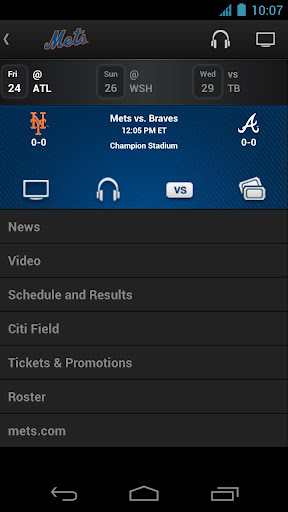
It’s baseball season and that means it’s time to plop down arguably the best $15 I’ll spend all year long for the MLB At Bat App which is available for Android, Apple, Blackberry, and Windows Phone devices. I’ll be reviewing the Android app so your mileage may vary regarding the layout and functionality of some features on other operating systems.

Looking through the Play Store (aka Android Market) you’ll find two apps by searching for “MLB.com At Bat.”

At Bat Lite – view live scores, news and standings
- Assign your favorite team for team schedules, tickets, rosters, and stats
- MLB.tv premium subscribers can unlock all the features of the app and watch live games
At Bat Premium
- Access real time pitch tracking, box scores, and play by play
- Listen to live radio broadcasts of every game
- Choose your audio feed (I’m waiting for the Portuguese play by play for the Yankees)
- Watch in-game highlights
- Watch live game action (blackout restrictions apply)

The default view in the news section but a dropdown menu gives users the option to filter the news to individual teams. Articles are culled from MLB.com and have embedded video highlights in the articles. Most writers are available to follow via Twitter to give fans some extra insights on their favorite teams. Phillies fans should check out Todd Zolecki
The app will play out of your equipment’s speaker by default, but sometimes that’s not the best option. There are a few ways to listen to the game in the car which is great if you don’t have satellite radio and have lost the signal from the local station. Some cars have a dedicated iPhone docking port. Others have a dedicated auxiliary input. Some cars have it labeled “Aux.” A cable like this one will take care of you.
For cars without an auxiliary port, a Bluetooth speaker with an FM transmitter like the
Motorola Roadster will let you stream your music through your car’s FM radio. There can be a little bit of audio loss using the FM transmitter depending on which station you program the speaker to use. The audio cable will provide better audio quality.
This last one is on the house. I was surprised how hard it was to find a good clip from this movie without an obscenity. My girlfriend still hasn't watched the entire thing.
Looking through the Play Store (aka Android Market) you’ll find two apps by searching for “MLB.com At Bat.”
At Bat Lite – view live scores, news and standings
- Assign your favorite team for team schedules, tickets, rosters, and stats
- MLB.tv premium subscribers can unlock all the features of the app and watch live games
At Bat Premium
- Access real time pitch tracking, box scores, and play by play
- Listen to live radio broadcasts of every game
- Choose your audio feed (I’m waiting for the Portuguese play by play for the Yankees)
- Watch in-game highlights
- Watch live game action (blackout restrictions apply)
The default view in the news section but a dropdown menu gives users the option to filter the news to individual teams. Articles are culled from MLB.com and have embedded video highlights in the articles. Most writers are available to follow via Twitter to give fans some extra insights on their favorite teams. Phillies fans should check out Todd Zolecki
The app will play out of your equipment’s speaker by default, but sometimes that’s not the best option. There are a few ways to listen to the game in the car which is great if you don’t have satellite radio and have lost the signal from the local station. Some cars have a dedicated iPhone docking port. Others have a dedicated auxiliary input. Some cars have it labeled “Aux.” A cable like this one will take care of you.
For cars without an auxiliary port, a Bluetooth speaker with an FM transmitter like the
Motorola Roadster will let you stream your music through your car’s FM radio. There can be a little bit of audio loss using the FM transmitter depending on which station you program the speaker to use. The audio cable will provide better audio quality.
This last one is on the house. I was surprised how hard it was to find a good clip from this movie without an obscenity. My girlfriend still hasn't watched the entire thing.
Wednesday, April 4, 2012
Navigating Your Desktop and Settings For Android
I’m back again to help new Android users get acclimated to their phones. Today, I’ll be going over the notification bar, your desktop, and some common settings that you’ll want to take a look at.
Meet the Desktop
Looking at an Android phone loaded with a ton of apps and widgets on the desktop can sometimes be a little daunting for a shopper. It shouldn’t be. Remember, the phone on display isn’t yours. You will be able to lay your phone out however you want and I’m going to go over how. Actually, I won’t, but the video below will.
Your phone may not have the trash can in the same position. It may be at the top or in one of the bottom corners. Additionally, when you delete an icon off the desktop, you are not uninstalling the program. You’re simply removing the icon. In regards to moving an icon from one window to another, if you’re having difficulty, chances are your finger is not close enough to the edge.
Widget? What’s a Widget?
You may see some larger icons on the desktop. They are called widgets. A widget allows you to either view information or control something on the phone directly from the desktop. For instance, if you’ve downloaded the music app Pandora, its widget allows you to pause, play, and skip tracks without going into the app itself (handy if you’re out for a jog).
On some phones the method shown may not work depending on how the manufacturer has laid out the menus on the phone. If this is the case for your phone, find a blank spot on the desktop and then press and hold your finger on the screen for a second or two. This is called a “long hold” or “long press” and will bring up the same menu in the video.
Adding Apps to the Desktop
Adding apps to the desktop is very easy. Most phones will have any icon in the bottom right corner listed as “Apps” or “Applications.” Regardless of how you get into the app tray, find the app you want to put on the desktop, then press and hold the icon. Some phones will automatically bring the icon to the desktop. Others may bring up a menu asking you what command you would like the phone to perfrom.
Notification Bar
The notification bar can be found by dragging your finger from the very top of the phone down to the bottom of the screen. It will alert you of missed calls, emails, software updates, or notifications from an app you have downloaded.
Your notification screen will vary depending on the model of your phone. Manufacturers can differentiate the phone by customizing the notification bar. Some phones may display a list of recently used apps. Other phones may give you the ability to toggle GPS, Bluetooth, or Wi-Fi. If there are toggle buttons, I encourage you to get familiar with them. Frequently, customers will come into my store with a problem caused by inadvertently toggling one of these icons. The two biggest culprits are disabling the auto-rotate feature or disabling the internet connection to the phone.
 " />
" />
Navigating Your Settings
We’re going to spend the rest of this post going through our settings. I’ll be going through these on a Motorola Droid 4. To find the settings key you will want to hit the Menu key and then select Settings.
Wireless and Networks – You will find Bluetooth and Wi-Fi settings here. Just because you turn them on does not necessarily mean they’re doing what you want them to do. You must go into “Wi-Fi Settings” or “Bluetooth Settings” and connect your phone to the desired router or Bluetooth device. Generally speaking, after connecting your phone to another device it should automatically connect to the same device as long as the correct signal.
For example: Pair your phone to your Bluetooth headset and then as long as the headset is powered on and Bluetooth on the phone is turned on the two devices will connect automatically.
Sound – Shocker, you can control your audio settings. Your ringtone setting for incoming calls and the notification ringtone for text messages and email will be found here.
Display – If you think your screen goes dark to quickly, you will find the Screen Timeout setting useful for increasing the time the screen stays lit. I wouldn’t go above 2 minutes though as you will see a decrease in battery life.
Privacy – You can perform a master reset by selecting “Factory Data Reset.” This will erase everything on your phone.
Meet the Desktop
Looking at an Android phone loaded with a ton of apps and widgets on the desktop can sometimes be a little daunting for a shopper. It shouldn’t be. Remember, the phone on display isn’t yours. You will be able to lay your phone out however you want and I’m going to go over how. Actually, I won’t, but the video below will.
Your phone may not have the trash can in the same position. It may be at the top or in one of the bottom corners. Additionally, when you delete an icon off the desktop, you are not uninstalling the program. You’re simply removing the icon. In regards to moving an icon from one window to another, if you’re having difficulty, chances are your finger is not close enough to the edge.
Widget? What’s a Widget?
You may see some larger icons on the desktop. They are called widgets. A widget allows you to either view information or control something on the phone directly from the desktop. For instance, if you’ve downloaded the music app Pandora, its widget allows you to pause, play, and skip tracks without going into the app itself (handy if you’re out for a jog).
On some phones the method shown may not work depending on how the manufacturer has laid out the menus on the phone. If this is the case for your phone, find a blank spot on the desktop and then press and hold your finger on the screen for a second or two. This is called a “long hold” or “long press” and will bring up the same menu in the video.
Adding Apps to the Desktop
Adding apps to the desktop is very easy. Most phones will have any icon in the bottom right corner listed as “Apps” or “Applications.” Regardless of how you get into the app tray, find the app you want to put on the desktop, then press and hold the icon. Some phones will automatically bring the icon to the desktop. Others may bring up a menu asking you what command you would like the phone to perfrom.
Notification Bar
The notification bar can be found by dragging your finger from the very top of the phone down to the bottom of the screen. It will alert you of missed calls, emails, software updates, or notifications from an app you have downloaded.
Your notification screen will vary depending on the model of your phone. Manufacturers can differentiate the phone by customizing the notification bar. Some phones may display a list of recently used apps. Other phones may give you the ability to toggle GPS, Bluetooth, or Wi-Fi. If there are toggle buttons, I encourage you to get familiar with them. Frequently, customers will come into my store with a problem caused by inadvertently toggling one of these icons. The two biggest culprits are disabling the auto-rotate feature or disabling the internet connection to the phone.
" />Navigating Your Settings
We’re going to spend the rest of this post going through our settings. I’ll be going through these on a Motorola Droid 4. To find the settings key you will want to hit the Menu key and then select Settings.
Wireless and Networks – You will find Bluetooth and Wi-Fi settings here. Just because you turn them on does not necessarily mean they’re doing what you want them to do. You must go into “Wi-Fi Settings” or “Bluetooth Settings” and connect your phone to the desired router or Bluetooth device. Generally speaking, after connecting your phone to another device it should automatically connect to the same device as long as the correct signal.
For example: Pair your phone to your Bluetooth headset and then as long as the headset is powered on and Bluetooth on the phone is turned on the two devices will connect automatically.
Sound – Shocker, you can control your audio settings. Your ringtone setting for incoming calls and the notification ringtone for text messages and email will be found here.
Display – If you think your screen goes dark to quickly, you will find the Screen Timeout setting useful for increasing the time the screen stays lit. I wouldn’t go above 2 minutes though as you will see a decrease in battery life.
Privacy – You can perform a master reset by selecting “Factory Data Reset.” This will erase everything on your phone.
Sunday, April 1, 2012
Getting Comfy With Android
If you’re reading this article, chances I’ve recently sold you a phone and this is your first time owning an Android smartphone. First, thank you for your business and secondly, I hope you enjoy your new phone. I’ve put this primer together for you as a supplement to what I’ve gone over with you in store and to tide you over until you’re able to make it to a class. Verizon Wireless offers free classes at this link. There are online videos to view at your own pace, instructor led classes, and in-store sessions that you can sign up for.
As an FYI, any examples I provide are from the setup on the Droid 4 by Motorola. There may be some slight differences between your device and mine and you’ll just need to look for a few seconds to see the differences.

Almost every Android phone has four keys at the bottom of the screen. Starting at the left they are Menu, Home, Back, and Search.
Rule #1 of the menu key is if you know you’re in the right place but don’t see an option for what you want to do, hit the menu key. For example, when you need to add a new contact in the address book and you’ve missed the plus sign at the top of the menu, you can press the menu key to bring up a menu with an option to add a new contact.
The home key will bring you back out to your desktop page. This is the equivalent of minimizing a program on your computer. It does not close the program out, and when you open the app back it brings you right back to where you were. The back key will bring you back one menu at a time. Some people are unable to make the distinction between the two buttons and get discouraged when they struggle to navigate the device.
The search key provides two functions. First, it provides you with easy access to search the web using Google. When you start typing it gives you auto-suggestions just like on the Google website. It will also look through the phone for apps or contacts. Aside from voice commands, this is the fastest way to find anything on the phone. There is no need to scroll through your contacts manually or try and remember where put Angry Birds.
Gmail
You will need to set up an account to access the Play Store in order to download apps, music, or books. You do not need to make it your main email account and continue to use your existing email accounts. I know this may seem like common sense, but make sure you keep your login and password stored somewhere safe. I have had countless customers lose it and you are at risk of losing access to contacts, calendar appointments, apps, and music when you switch from one Android phone to another.
Market Place/Play Store

This is where you can download apps, games, music, books and rent movies. Many apps and games are free because they are ad-supported or allow you to complete micro transactions in game. Within 24 hours of activating your phone, you the Market Place app may disappear from your home screen or simply change names. This is normal. Google has rebranded it to the Play Store. We’ll cover how to get it back on your home screen later. In order to find anything, you can either manually search by tapping on one of the categories or use the search icon in the upper right hand corner to specifically search by name. One last point on the Play Store, you can also view and download apps from play.google.com.
Introducing the Long Hold
A long hold is different from a tap. Sounds stupid, but it needs be said. A tap on the screen is the equivalent of a left button click on a mouse while a long hold is the equivalent of a right click on the mouse. A tap will select something while a long hold will give you options. Long holds are useful for adding widgets to the desktop, opening up websites in another browser tab, or deleting contacts and text messages.
Managing Your Battery Life
Watch this video and add the power widget to your home screen. Some phones may have the widget listed as “Toggle: Power Control.” The only ones you should concern yourselves with are Bluetooth, GPS, and Wi-Fi.
Next, go to the Play Store and download “4G Toggle” and add this widget to your desktop following the same. This app will allow you to tell your phone to stop connecting to a 4G network and only connect to 3G. When you tap the widget it brings you to a network settings option. Tap “Network Mode” and select “CDMA only” and you will only use the 3G connection. Switching back to “CDMA/LTE” will enable 4G again.
The lesson here, turn these items off when you don’t need them. When you get out of your car, turn Bluetooth off. When you turn it back on and get within range of your car or headset they will reconnect automatically.
See you next time
Thanks again for visiting. I’m going to leave you here to play with your phones for a bit. Next time I’ll review the notification bar, managing apps and shortcuts on the desktop , digging through settings, and using GPS.
As an FYI, any examples I provide are from the setup on the Droid 4 by Motorola. There may be some slight differences between your device and mine and you’ll just need to look for a few seconds to see the differences.
Meet Your Home Keys
Almost every Android phone has four keys at the bottom of the screen. Starting at the left they are Menu, Home, Back, and Search.
Rule #1 of the menu key is if you know you’re in the right place but don’t see an option for what you want to do, hit the menu key. For example, when you need to add a new contact in the address book and you’ve missed the plus sign at the top of the menu, you can press the menu key to bring up a menu with an option to add a new contact.
The home key will bring you back out to your desktop page. This is the equivalent of minimizing a program on your computer. It does not close the program out, and when you open the app back it brings you right back to where you were. The back key will bring you back one menu at a time. Some people are unable to make the distinction between the two buttons and get discouraged when they struggle to navigate the device.
The search key provides two functions. First, it provides you with easy access to search the web using Google. When you start typing it gives you auto-suggestions just like on the Google website. It will also look through the phone for apps or contacts. Aside from voice commands, this is the fastest way to find anything on the phone. There is no need to scroll through your contacts manually or try and remember where put Angry Birds.
Gmail
You will need to set up an account to access the Play Store in order to download apps, music, or books. You do not need to make it your main email account and continue to use your existing email accounts. I know this may seem like common sense, but make sure you keep your login and password stored somewhere safe. I have had countless customers lose it and you are at risk of losing access to contacts, calendar appointments, apps, and music when you switch from one Android phone to another.
Market Place/Play Store
This is where you can download apps, games, music, books and rent movies. Many apps and games are free because they are ad-supported or allow you to complete micro transactions in game. Within 24 hours of activating your phone, you the Market Place app may disappear from your home screen or simply change names. This is normal. Google has rebranded it to the Play Store. We’ll cover how to get it back on your home screen later. In order to find anything, you can either manually search by tapping on one of the categories or use the search icon in the upper right hand corner to specifically search by name. One last point on the Play Store, you can also view and download apps from play.google.com.
Introducing the Long Hold
A long hold is different from a tap. Sounds stupid, but it needs be said. A tap on the screen is the equivalent of a left button click on a mouse while a long hold is the equivalent of a right click on the mouse. A tap will select something while a long hold will give you options. Long holds are useful for adding widgets to the desktop, opening up websites in another browser tab, or deleting contacts and text messages.
Managing Your Battery Life
Watch this video and add the power widget to your home screen. Some phones may have the widget listed as “Toggle: Power Control.” The only ones you should concern yourselves with are Bluetooth, GPS, and Wi-Fi.
Next, go to the Play Store and download “4G Toggle” and add this widget to your desktop following the same. This app will allow you to tell your phone to stop connecting to a 4G network and only connect to 3G. When you tap the widget it brings you to a network settings option. Tap “Network Mode” and select “CDMA only” and you will only use the 3G connection. Switching back to “CDMA/LTE” will enable 4G again.
The lesson here, turn these items off when you don’t need them. When you get out of your car, turn Bluetooth off. When you turn it back on and get within range of your car or headset they will reconnect automatically.
See you next time
Thanks again for visiting. I’m going to leave you here to play with your phones for a bit. Next time I’ll review the notification bar, managing apps and shortcuts on the desktop , digging through settings, and using GPS.
Subscribe to:
Comments (Atom)